
Trim & Convert Without Bloat
Fast Video Trimmer & Batch Media Converter.
Keep the Clip. Skip the Upload.
Need to trim a 10-second highlight from a large video or convert an audio file to MP3? Web-based video editors force you to upload huge files over slow internet connections. Media Trim bundles a verified, high-performance FFmpeg engine to cut, transcode, and compress video locally in seconds.
winget install --id 9PC1HVN60QBP --source msstore
Runs on Windows 10 & 11 (x64), Linux (Snap Store, .deb, .tar.gz), and Android. No sign-up, no subscriptions, zero cloud telemetry.
Your files never leave your PC. No cloud uploads, no third-party tracking.
No startup daemons, no background services, no persistent system tray bloat.
Useful free edition with no expiry. Upgrade once for lifetime extras; no subscriptions.
Designed for Performance
Key Features & Capabilities
Built with native Windows 11 Fluent styling, high-efficiency local engines, and zero friction.
Bundled FFmpeg Engine
Ready to use out of the box with an embedded, security-reviewed FFmpeg engine. No command-line installation or system PATH tinkering required.
Precision Trimming
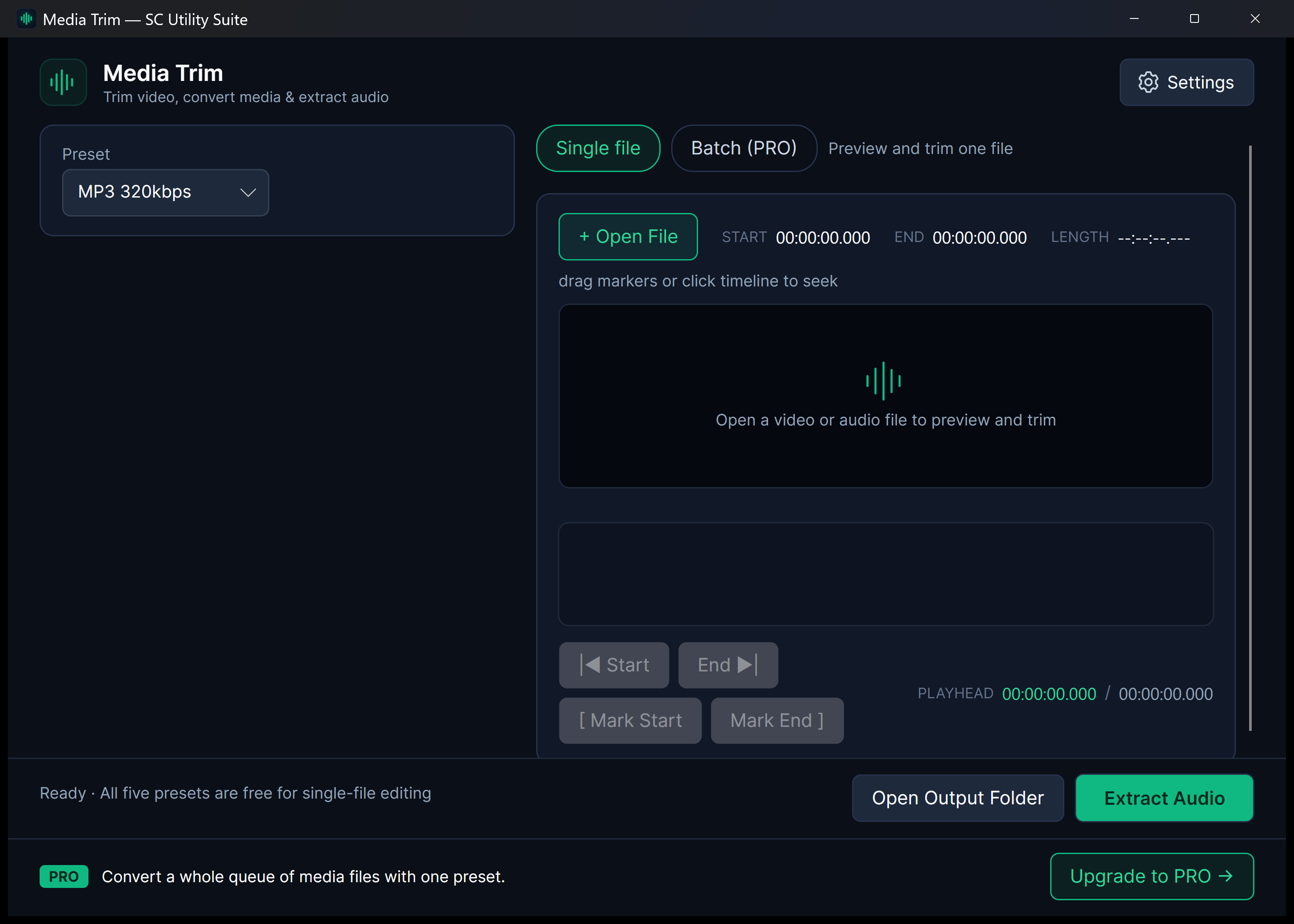
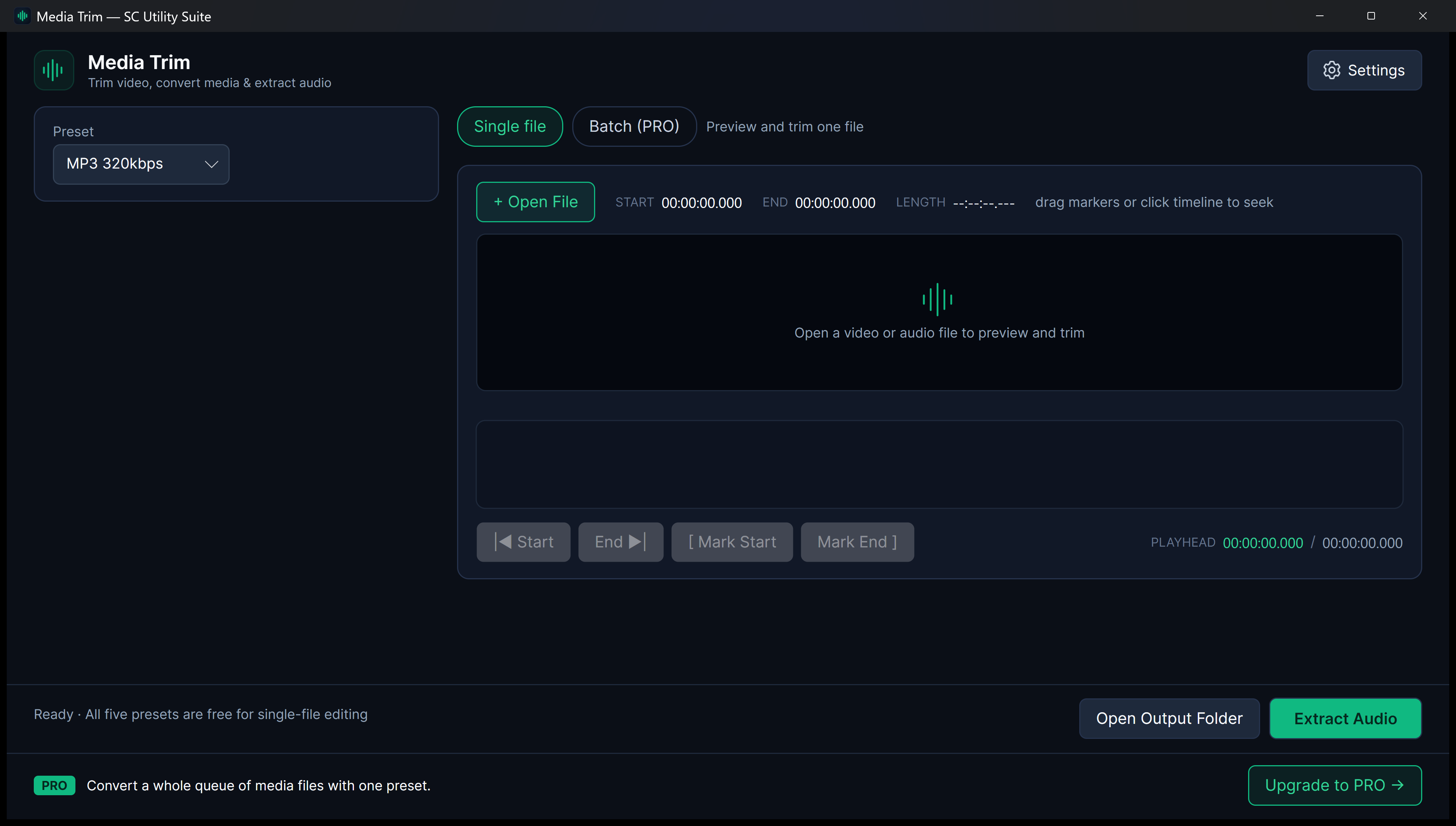
Set start and end points visually to extract exact video clips and highlights without quality degradation.
Popular Presets
Includes curated export presets for MP4 (H.264), WebM, MP3 audio extraction, and lightweight sharing formats.
Fast Hardware Transcoding
Utilizes your PC's CPU and GPU acceleration for ultra-fast local encoding.
Precision Timeline & FFmpeg Engine
Select the Exact Segment You Want to Keep
Switch between lossless stream-copy cuts and MP3, WAV, or 720p MP4 presets powered by local FFmpeg.
Quick Start Guide
How to Use Media Trim
Three straightforward steps from file selection to completed task.
Import Your Media File
Drag and drop any video (MP4, MKV, MOV, AVI) or audio file into the workspace.
Set Trim Range & Preset
Choose your start and end cut points, or select a conversion preset like MP3 audio or compressed MP4.
Export Locally
Click Export. Your trimmed clip or converted media is produced on your PC in moments.
SEE IT IN ACTION
Watch Media Trim in Action
Instant high-framerate demos, vertical 60-second Short, and full YouTube walkthrough.
Transparent & Fair Pricing
Free vs. Lifetime PRO
Available free on Microsoft Store, Snap Store, direct installer/portable ZIP, and Linux .deb/.tar.gz. Upgrade anytime with a one-time PRO licence.
FREE FOREVER
Standard Edition
$0 no expiration
Full single-file trimming, audio extraction, all 5 conversion presets, and high-quality local exporting.
- 100% offline file processing
- No recurring subscription
- Clean Windows 11 Fluent interface
- No watermarks or cloud lock-in
OPTIONAL LIFETIME UPGRADE
PRO Edition
$3.99 one-time payment
Queue-based Batch Conversion mode to process dozens of whole media files in sequence, plus upgrade banner removal.
- Multi-file Batch Conversion Queue
- Bulk video transcoding
- Remove upgrade banner
- No recurring fees
Answers
Frequently Asked Questions
Do I need to install FFmpeg separately?
No. Media Trim comes with a bundled, verified FFmpeg runtime pre-packaged inside the installer. It works immediately upon installation.
Can I extract audio from video files?
Yes. Media Trim can extract the audio track from video files directly into an MP3 or AAC file with a single click.
Does Media Trim compress videos for Discord or email?
Yes. You can trim away dead air and choose optimized export presets to reduce file size while maintaining clean visual quality.
Part of the SC Utility Suite
Looking for other native Windows desktop tools? Explore the other 6 privacy-first utilities in our family:
 HEIC Studio
 Dup Scrub
 Screen Lens
 PDF Knife
 Archive Unpacker
 USB Flasher
COMPLETE TOOLBOX